BASIC SETUP
Bizrate Insights’ Online Buyer Survey Solution generates actionable Insights to improve your website’s performance by understanding the voice of your customer and their online experience.
To begin collecting the Voice of the Customer through Bizrate’s Online Buyer Survey Solutions, merchants must place Bizrate’s asynchronous JavaScript code on their order confirmation page. This will immediately allow you to collect feedback from customers who complete their purchase on your website
Once a survey is live on your website, data collection begins and results are available in real-time by accessing Bizrate’s online portal, VitalSigns.
Important Note | Bizrate Insights is committed to protecting customer privacy and will not store, rent, sell, or use customer email addresses provided to us by merchants for any purpose other than to send initial and reminder email survey invitations. These customer email addresses are deleted from the database once the survey invitations are emailed.
We are constantly testing the latest tech to fully optimize the experience and shape the usability of our default invitation for all screen sizes. This ensures your customer’s experience with Bizrate Insights’ solutions is optimized across all desktop, tablet, and mobile screens. There are several ways to customize the Online Buyer Survey invitations without ever changing the code on your website. We make this simple by granting you access to a tool within VitalSigns to control the survey invitation experience for desktop, tablet, and mobile screens. While this interface is under development, please contact us, or your account manager, to update on your behalf.
ONLINE BUYER SURVEY SOLUTION

Choose a tag type to begin setup…

Select Custom HTML

Select Custom HTML
Please note that the ##ORDER_ID##, ##EMAIL_ADDRESS##, and ##GTIN## placeholders below must be replaced with the data being called from your site.
<!-- Please note that the ##ORDER_ID##, ##EMAIL_ADDRESS##, and ##GTIN## placeholders below must be replaced with the data being called from your site -->
<script type="text/javascript">
  var _cnx = _cnx || [];
  _cnx.push(['mid', '##INSERT_STOREMID_HERE##']); // your unique store MID
  _cnx.push(['surveyType', 'pos']);
  _cnx.push(['orderId', '##INSERT_ORDER_ID_HERE##']); // pass the customer’s order ID number
  _cnx.push(['emailAddress', '##INSERT_EMAIL_ADDRESS_HERE##']); // pass the customer's email address
  _cnx.push(['gtin', '##INSERT_GTIN_HERE##']); // comma separate multiple gtins, 12 digit UPC/13 digit EAN - Required for Product Reviews

  (function(w, d, t) {
    var s = d.createElement(t);
    s.async = true;
    s.src = '//insights.bizrate.com/js/init.js';
    var h = d.getElementsByTagName(t)[0];
    h.parentNode.insertBefore(s, h);
  })(window, document, 'script');
</script>

Add your Google Tag Manager variables in the snippet by wrapping the variable’s name in double braces. Below is an example of variables, unique to a merchant’s implementation.
<!-- Example -->
<script type="text/javascript">
  var _cnx = _cnx || [];
  _cnx.push(['mid', 170739]); // your unique store MID
  _cnx.push(['surveyType', 'pos']);
  _cnx.push(['orderId', '{{Transaction ID}}']); // pass the customer’s order ID number
  _cnx.push(['emailAddress', '{{Customer Email}}']); // pass the customer's email address
  _cnx.push(['gtin', '{{Product SKUs}}']); // 12 digit UPC/13 digit EAN - Required for Product Reviews

  (function(w, d, t) {
    var s = d.createElement(t);
    s.async = true;
    s.src = '//insights.bizrate.com/js/init.js';
    var h = d.getElementsByTagName(t)[0];
    h.parentNode.insertBefore(s, h);
  })(window, document, 'script');
</script>

Read more about adding Tag Manager variables in the custom html tag.
Read more about Google Tag Manager variables.
Required
Click to configure a trigger type to begin setup. The tag should fire on the order confirmation page.
Read more about Google Tag Manager triggers here.

After the tag has been successfully installed, make sure the tag configurations function as expected Learn more here to enable preview mode.

BASIC SETUP
Bizrate Insights Site Abandonment Survey Solutions generate actionable Insights to improve your website’s performance by understanding your customer’s experience. Retailers are required to place Bizrate’s JavaScript code on their website to utilize Bizrate’s Site Abandonment Survey Solution.
We partner with Google Tag Manager, which allows easy implementation of the Bizrate Insights Site Abandonment Surveycode. Data collection begins immediately once the survey is live on your website; results can be viewed via the VitalSigns portal in near real-time (streaming soon).
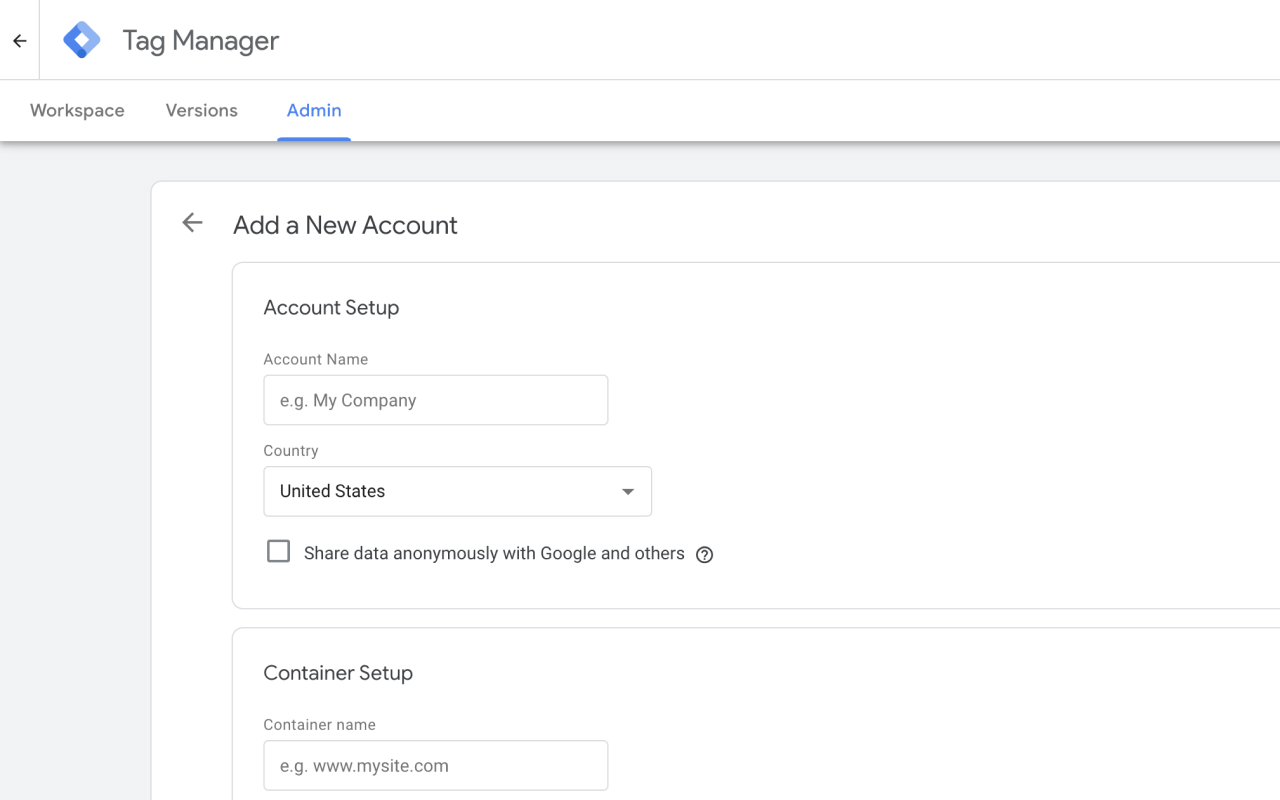
* If you already have an account, skip to step 4

Click on the tag icon to create a new tag

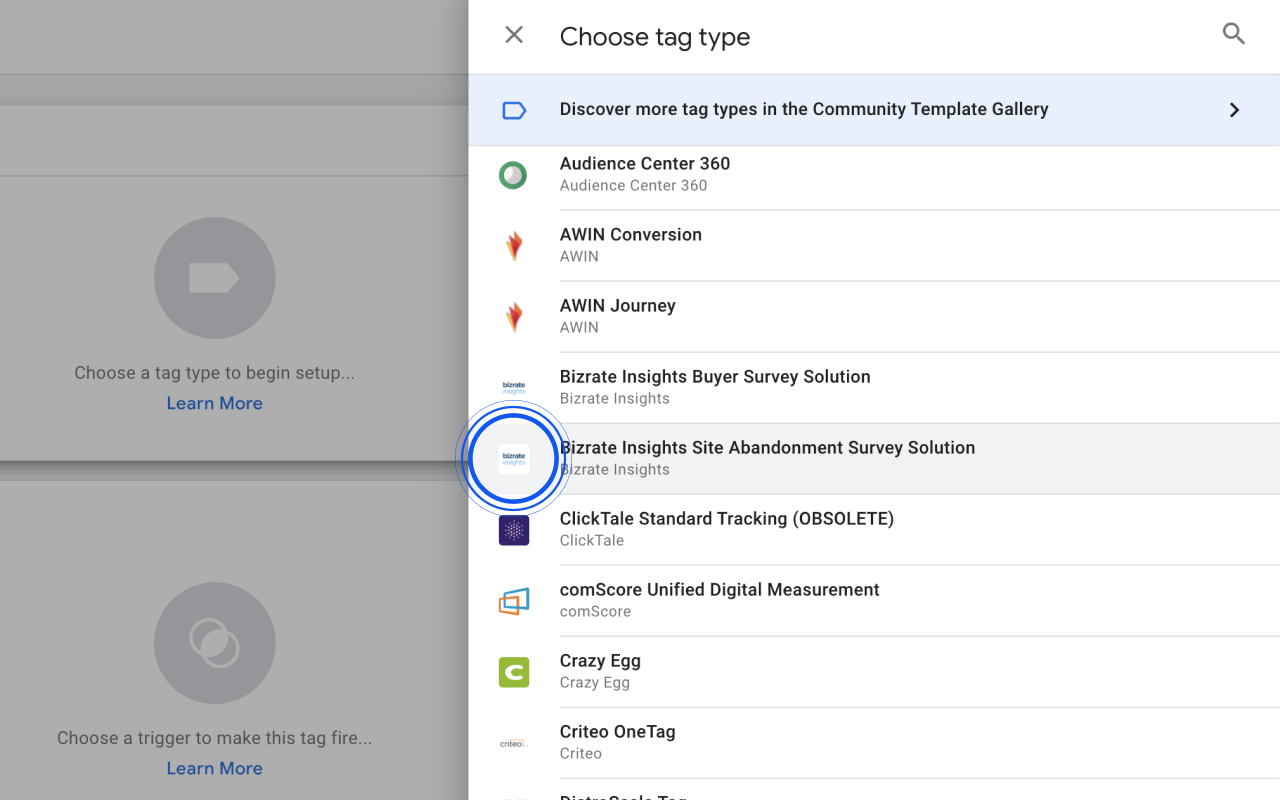
Locate and click on Bizrate Insights Site Abandonment Solution. (Tip: Click on the search icon to the right of “Choose a tag type” and type in “bizrate”
Enter your MID Required
* Note: Ticket in wit h Google to update Connexity Merchant Id to Bizrate Merchant Id

Note: If using a User-Defined Variable, a corresponding Javascript must be included on your webpages in order to pass values to User-Defined Variables
Select where you want to implement the Bizrate Site Abandonment Solution

Tags must have at least one trigger in order to fire. The most commonly used trigger is Page View.


Tags can trigger on all page views or some page views
See “Creating custom triggers” section below for detailed information on how to create and use triggers
Note: Remember to publish the tag, after each change, for changes to go into effect.

The module allows you to create and configure variables that you can pass into your tag. Google Tag Manager provides a number of different variable types; the most commonly used ones are the JavaScript Variable and the Data Layer Variable.
Variables are now available for your Bizrate Insights Site Abandonment Survey Solution tag configuration
If you choose to pass values to the tag using User-Defined Variables, set these variables on your webpage
JavaScript variable example:

To use this variable, set the “cartTotal” variable in the JavaScript on your page:
<script type="text/javascript">
  var cartTotal = '999.99';
</script>
Data Layer variable example:

To use this variable, set the “orderIdData” variable in the data layer on your page:
<script>
  dataLayer = [];
  dataLayer.push({
    orderIdData: 'order123'
  });
</script>

Example – set up a trigger that will only fire on a page with a specific pageType
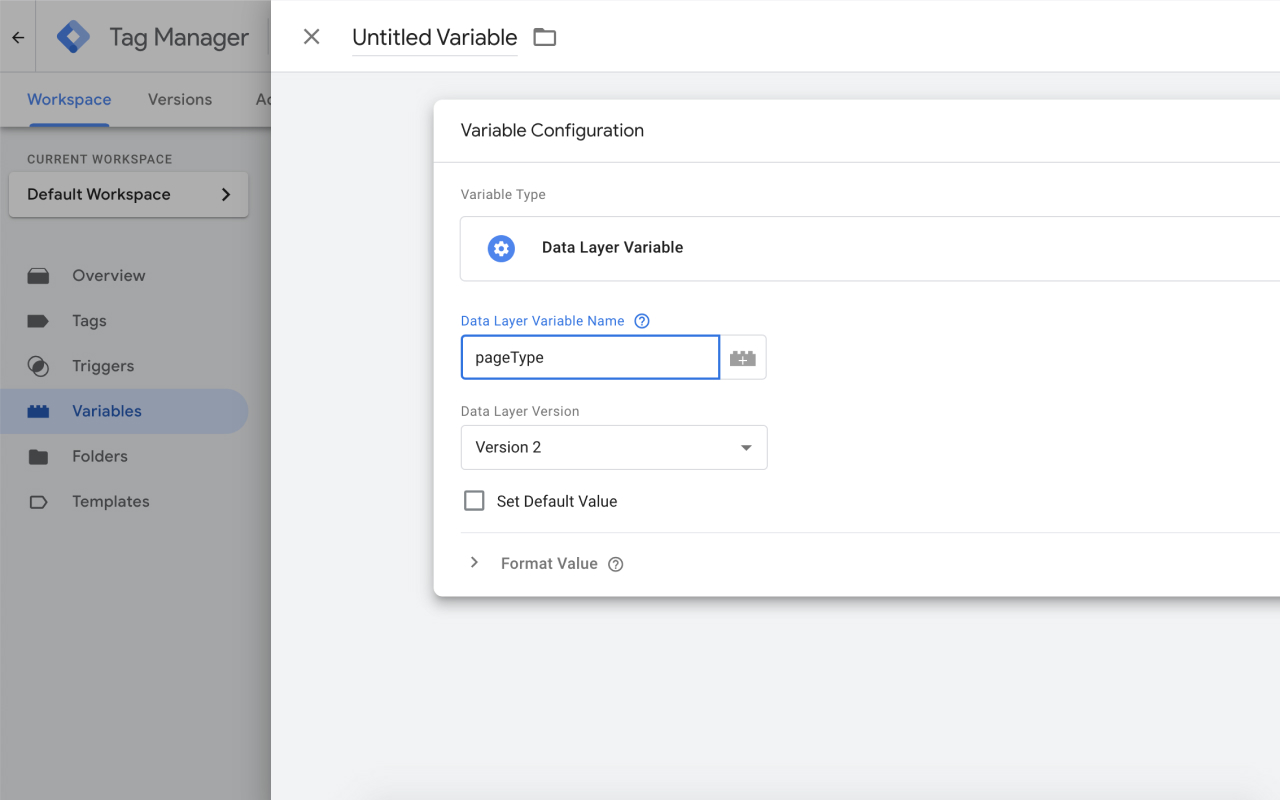


<script>
  dataLayer = [];
  dataLayer.push({
    pageType: 'home'
  });
</script>

Example below:
Copy the following JavaScript and paste it as close to the openingtag as possible on every page of your website, replacing GTM-XXXX with your container ID:
Basic Code Implementation <head>
<!-- Add to HTML head on every webpage except order confirmation for site abandonment survey -->
<!-- Paste this code as high in the <head> of the page as possible -->

<!-- Google Tag Manager -->
<script>
  (function(w, d, s, l, i) {
    w[l] = w[l] || [];
    w[l].push({
      'gtm.start': new Date().getTime(),
      event: 'gtm.js'
    });
    var f = d.getElementsByTagName(s)[0],
        j = d.createElement(s),
        dl = l != 'dataLayer' ? '&l=' + l : '';
    j.async = true;
    j.src = 'https://www.googletagmanager.com/gtm.js?id=' + i + dl;
    f.parentNode.insertBefore(j, f);
  })(window, document, 'script', 'dataLayer', 'GTM-XXXXXX');
</script>
<!-- End Google Tag Manager -->
Copy the following snippet and paste it immediately after the opening <body> tag on every page of your website, replacing GTM-XXXX with your container ID
Basic Code Implementation <body>
<!-- Add immediately after the opening <body> tag on every webpage except order confirmation for site abandonment survey -->
<!-- Google Tag Manager (noscript) -->
<noscript>
  <iframe src="https://www.googletagmanager.com/ns.html?id=GTM-XXXXXX"
          height="0" width="0"
          style="display:none;visibility:hidden">
  </iframe>
</noscript>
<!-- End Google Tag Manager (noscript) -->
See also: https://developers.google.com/tag-manager/quickstart
JavaScript variable example
User-defined variables list:

Bizrate Insights Site Abandonment Survey Solution configuration

JavaScript code on webpage
<script type="text/javascript">
  var referrerPage = 'Home Page';
  var referrerUrl = 'www.homepage.com';
  var referrerId = 'referrer123';
  var webAnalyticsID = 'webId456';
  var customValue1 = 'customOne';
  var customValue2 = 'customTwo';
  var customID = 'cid789';

  var cartProducts = [{
    id: 'sku',
    price: '9.99',
    originalPrice: '9.99',
    quantity: '1',
    imageUrl: 'http://mysite.com/images/products123.jpg',
    title: 'Example Product Title'
  }];

  var cartTotal = '999.99';
</script>
Data layer variable example
User-defined variable list
Bizrate Insights Site Abandonment Survey Solution configuration
Data layer code on webpage
<script type="text/javascript">
  var referrerPage = 'Home Page';
  var referrerUrl = 'www.homepage.com';
  var referrerId = 'referrer123';
  var webAnalyticsID = 'webId456';
  var customValue1 = 'customOne';
  var customValue2 = 'customTwo';
  var customID = 'cid789';

  var cartProducts = [{
    id: 'sku',
    price: '9.99',
    originalPrice: '9.99',
    quantity: '1',
    imageUrl: 'http://mysite.com/images/products123.jpg',
    title: 'Example Product Title'
  }];

  var cartTotal = '999.99';
</script>


